Password and two-factor authentication
You find your password and two-factor authentication on the settings page: click your name at the bottom left and choose Settings. Both are in the Security group there.
Change your password
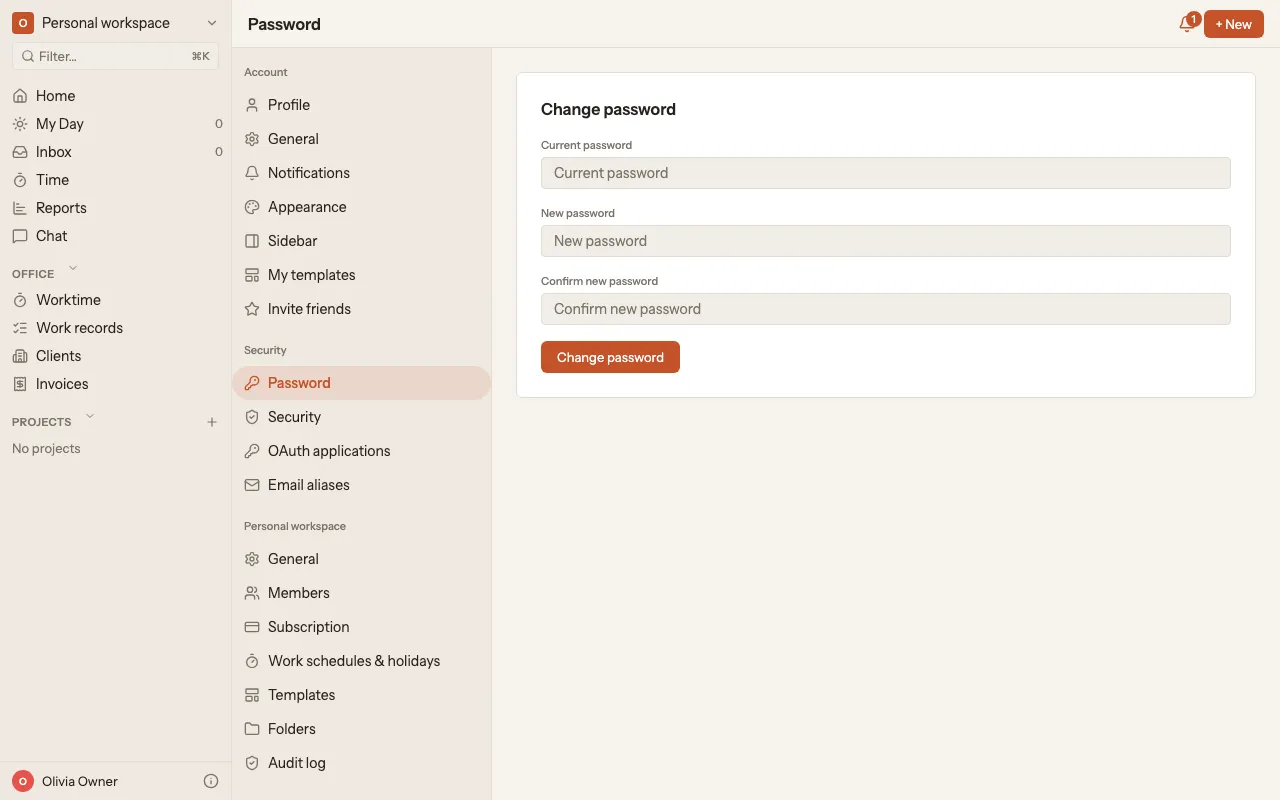
Section titled “Change your password”- Click your name at the bottom left, choose Settings and then Password.
- Fill in Current password, New password and Confirm new password.
- Click Change password.
Forgot your password? On the sign-in page, click Forgot password?. kora then sends you a reset link.
Turn on two-factor authentication
Section titled “Turn on two-factor authentication”You need an authenticator app on your phone for this.
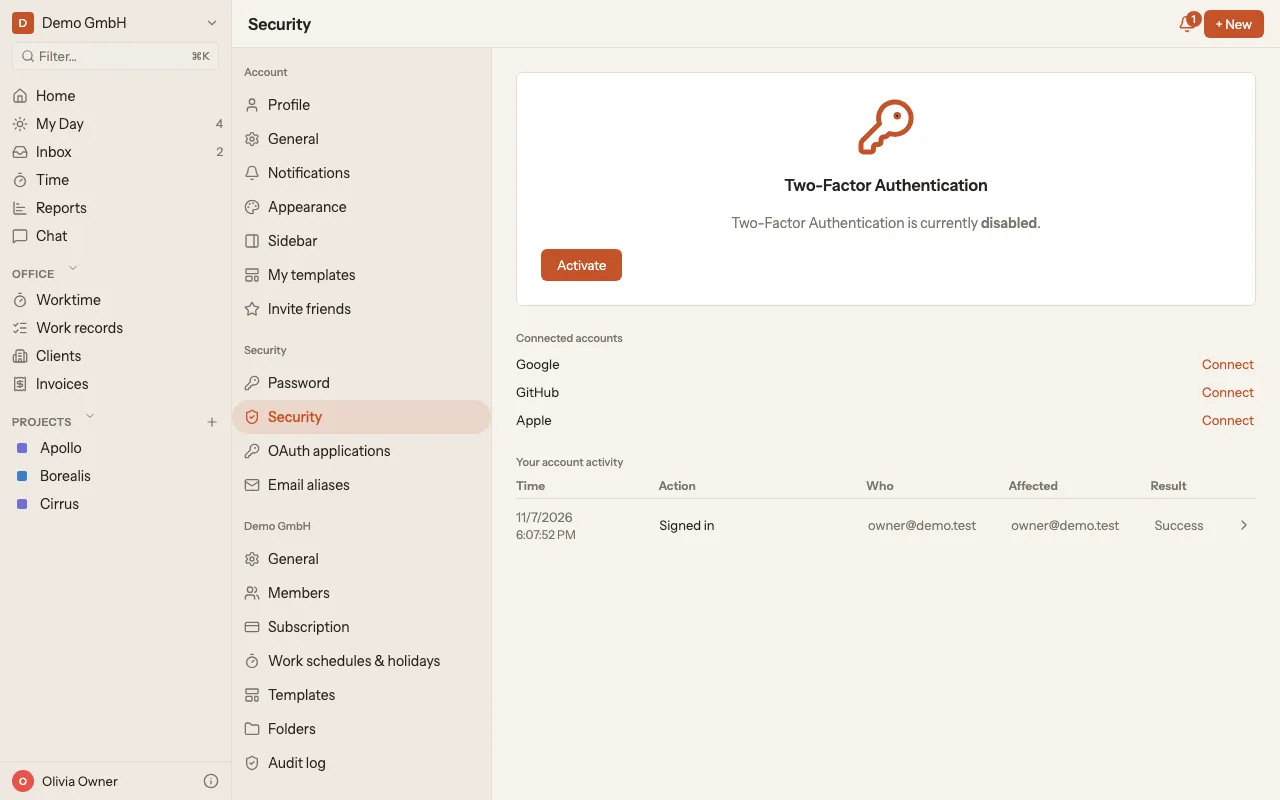
- Click your name at the bottom left, choose Settings and then Security.
- Click Activate.
- kora shows you a QR code and a key. Scan the code with your authenticator app or enter the key by hand.
- Enter the code from the app in the 6-digit code field and click Confirm.
- kora shows you Backup codes. Keep them safe: they are only shown once.
From now on, kora asks for the 2FA code from your app when you sign in. If you don’t have your phone at hand, enter one of your backup codes there instead. Each backup code works only once.
Turn off two-factor authentication
Section titled “Turn off two-factor authentication”- Click your name at the bottom left, choose Settings and then Security.
- Enter a current code from your authenticator app or a backup code.
- Click Deactivate.
Sign in with Google
Section titled “Sign in with Google”Instead of a password, you can also sign in with your Google account: on the sign-in page, click Continue with Google.
To connect Google to your kora account or disconnect it again:
- Click your name at the bottom left, choose Settings and then Security.
- Under Connected accounts, click Connect or Disconnect next to Google.
If Google is your only way to sign in, kora won’t disconnect it. Set a password first with Forgot password? on the sign-in page.