Subscribe or cancel
Every organization is billed through a subscription, and so is your Personal workspace. One subscription can cover several of your organizations, see One subscription for several organizations. The prices are shown right in the Subscription section, per member and net plus VAT; payment goes through our payment provider.
Subscription for an organization
Section titled “Subscription for an organization”Before you start
Section titled “Before you start”- You are an Owner or Admin of the organization. Everyone else sees a note instead of the subscription.
- Your email address is confirmed. kora sent you the link right after you signed up.
Subscribe
Section titled “Subscribe”- Click your organization’s name at the top left of the sidebar.
- Choose Subscription. Your plan shows what the organization has right now and how much of it is used. Projects include archived projects and templates.
- Under Plans, set Monthly or Yearly and click Choose Personal or Choose Pro.
- kora opens our payment provider’s page. Enter your payment details there and complete the subscription.
- Back in kora, Your plan briefly shows Confirming payment until our payment provider reports the payment. That usually takes seconds.
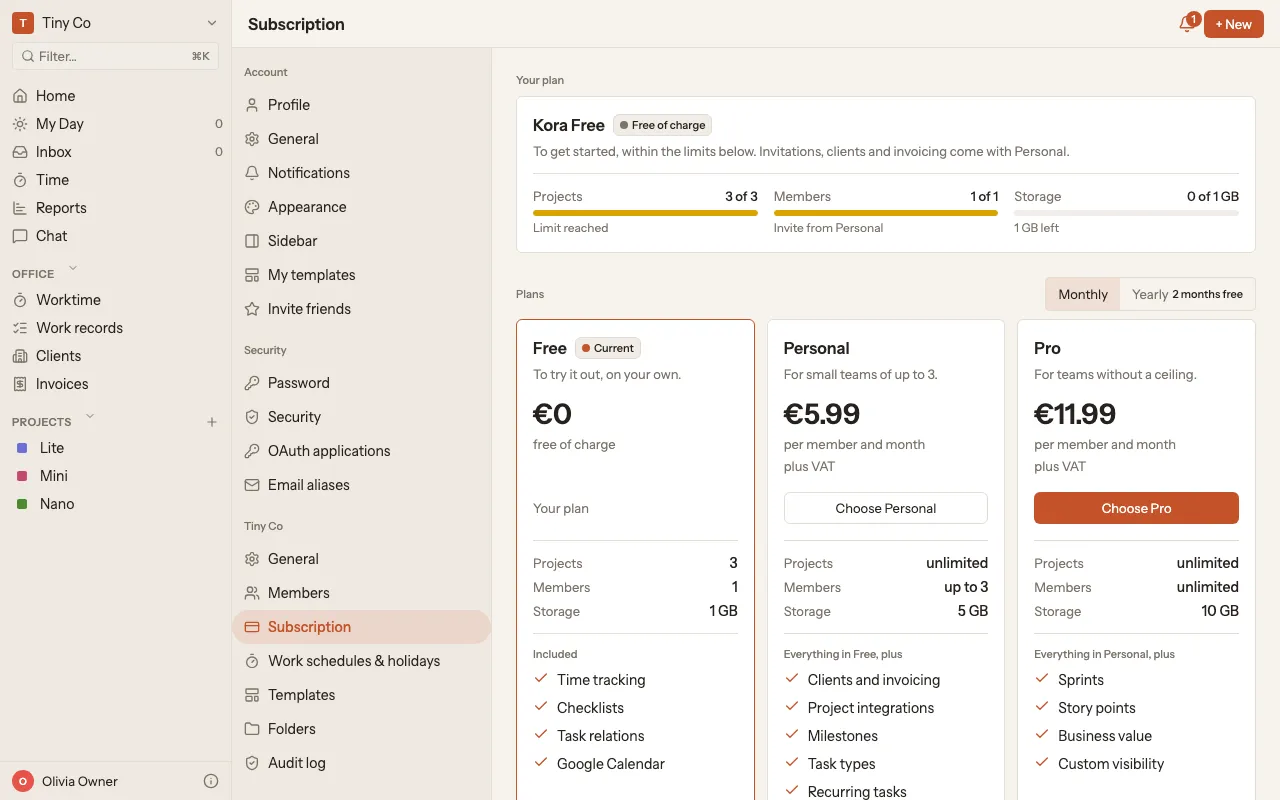
What the notes mean
Section titled “What the notes mean”- Checkout open: you started a checkout but have not paid. If you cancelled it, just choose the plan again. The note goes away by itself after a day.
- Payment due: the last payment failed. Check your payment method under Manage subscription.
- Subscription on hold: the subscription is unpaid or paused at the payment provider; until then Free applies. Resolve it under Manage subscription before choosing a new plan.
Change or cancel
Section titled “Change or cancel”- Open Subscription as above.
- Click Manage subscription (only visible with a paid subscription). kora opens our payment provider’s subscription management.
- There you change your payment details or cancel the subscription.
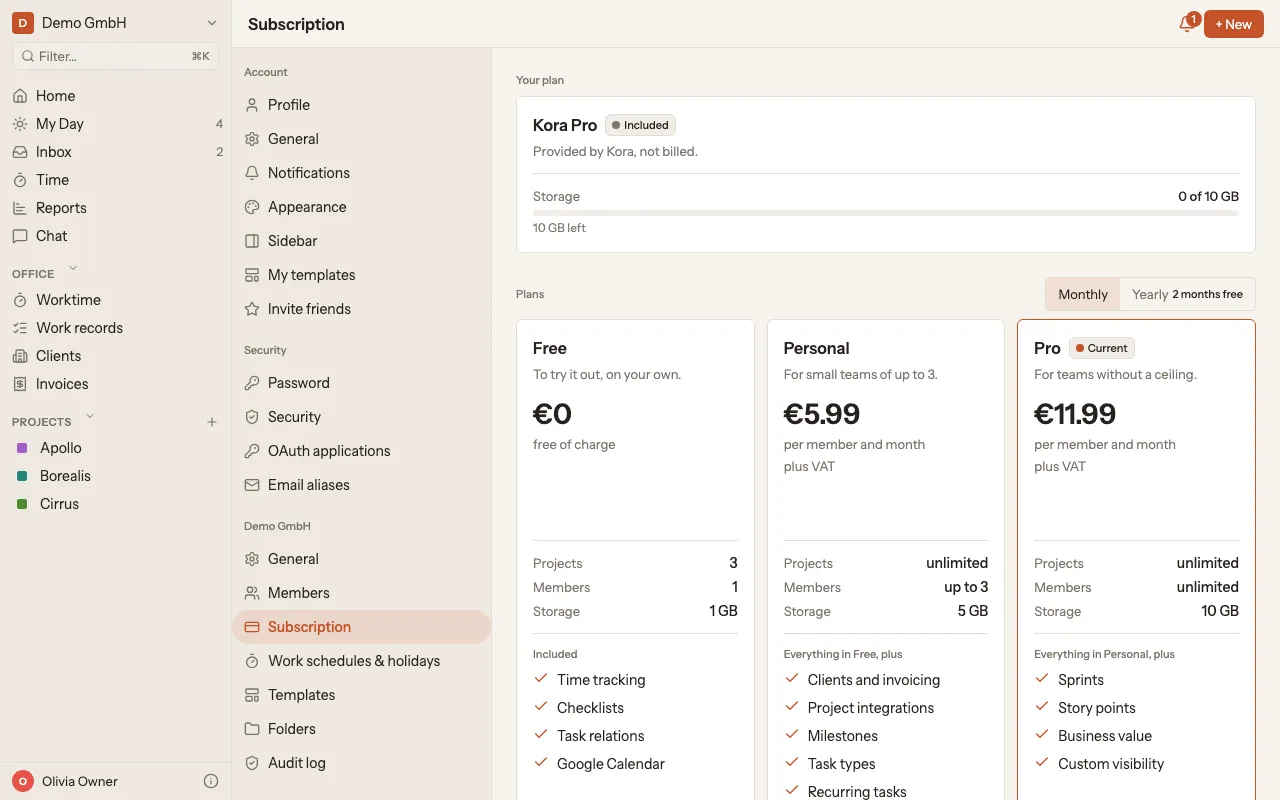
For a paid subscription, Your plan shows the billing interval, the billed members, the amount and the Next charge. If you cancelled at the end of the term, it says Ends on instead.
One subscription for several organizations
Section titled “One subscription for several organizations”If you own several organizations, you bill them through one subscription. Each person counts only once, even if they work in several of these organizations.
- In the Subscription section of an organization without its own subscription, choose the subscription it should belong to under Use an existing subscription.
- Under Billing account you see all organizations of the subscription. Add organization takes in another one, Detach takes another one out. The organization you are in is not detached here but via Manage subscription.
Subscription for your personal workspace
Section titled “Subscription for your personal workspace”Your Personal workspace is your own space that only you can see. It has a subscription of its own, separate from your organizations.
- Click your organization’s name at the top left of the sidebar and, under Switch workspaces, choose Personal workspace.
- Open the menu again and choose Subscription.
- Subscribing, changing and cancelling then work just as for an organization.