E-invoices
When you issue an invoice, kora creates the invoice PDF. For business clients in euro it is an e-invoice in the ZUGFeRD and XRechnung formats. For that, kora needs your details as the issuer once, and the address of each client.
Before you start
Section titled “Before you start”- You are an Owner or Admin of the organization. Only they see and edit the invoice details.
- There is a client: Add a client.
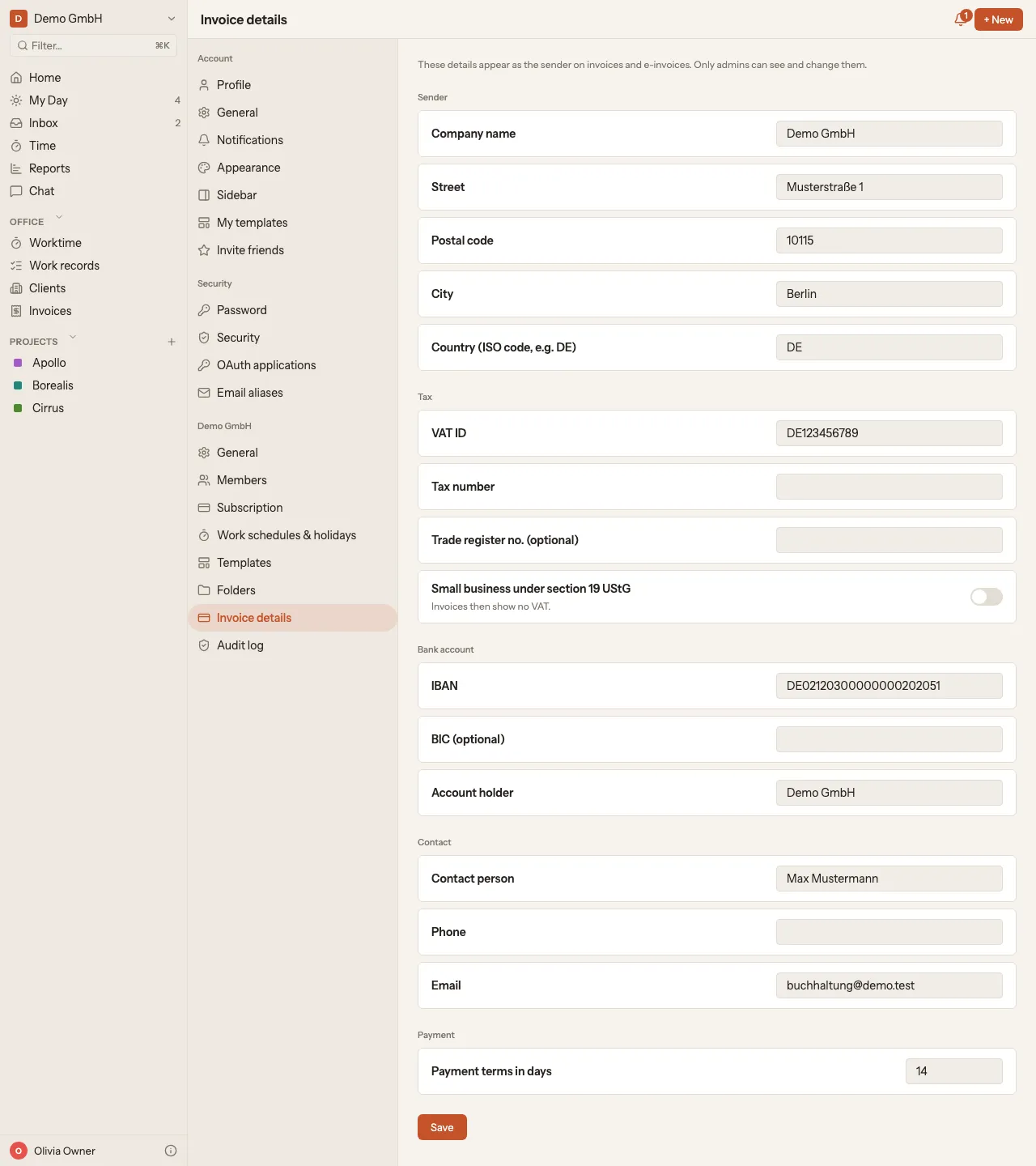
Fill in the organization’s invoice details
Section titled “Fill in the organization’s invoice details”- Open Settings.
- In the list on the left, under your organization’s name, choose Invoice details.
- Enter the details:
- Company name and address (street, postal code, city, country)
- VAT ID and/or Tax number
- Trade register no. (optional)
- Small business under section 19 UStG: turn it on if it applies to you. Invoices then show no VAT.
- IBAN, BIC (optional) and Account holder
- Contact person with Phone and Email
- Payment terms in days. The default is 14 days.
- Click Save.
Add the client’s details
Section titled “Add the client’s details”Open the client as described in Add a client and enter Street, Postal code, City and Country. E-invoices also need an Email for the client.
The Buyer reference / Leitweg ID is optional. If your client requires one, for example a public authority, enter it here. If it is empty, kora uses the invoice number.
Checking the draft
Section titled “Checking the draft”A draft shows the invoice the way the PDF will print it. With Draft PDF you download it as a PDF beforehand, marked ENTWURF across the page. If details are still missing, the draft already lists them with a link to the right place. The draft PDF simply leaves them out.
What happens when you issue
Section titled “What happens when you issue”-
In the invoice, click Issue and create PDF.
-
kora checks that all required details are there. If something is missing, kora lists it with a link to the right place. Fill it in and try again.
-
When everything is there, the invoice is frozen and counts as sent. It can no longer be changed.
-
kora creates the files that you can download from the invoice:
- PDF (ZUGFeRD): a PDF/A-3 with the e-invoice embedded as XRechnung.
- XML (XRechnung): the plain XML file.
Without an e-invoice (see below) only the PDF is created.
You send the invoice yourself; kora sends no email.
The downloads stay available even if you later move your subscription to a smaller plan.
Without an e-invoice: private customers, other currencies, based outside Germany
Section titled “Without an e-invoice: private customers, other currencies, based outside Germany”- Private customers get no e-invoice. Turn on Private customer (no e-invoice) on the client.
- Invoices in a currency other than euro also get no e-invoice.
- If your organization is not based in Germany, there is no e-invoice, not even for business clients in euro.
In all three cases kora checks the details every invoice needs (addresses, tax number or VAT ID, IBAN, service period) when you issue it and creates a plain PDF, but no XML. The client’s email and the contact person are not needed for that. kora points this out in the invoice.
If your organization is not based in Germany, the PDF carries no note on the tax case (such as reverse charge): the tax cases in kora follow German law. Which note your country’s law requires is best settled with your tax advisor; put it in the invoice notes.
Correcting: cancel instead of edit
Section titled “Correcting: cancel instead of edit”You do not edit a frozen invoice. Instead:
- Open the invoice and click Cancel invoice.
- kora creates a cancellation invoice with its own number and its own files, in the same form as the original invoice.
- The time entries of the cancelled invoice are billable again.
- Create a new invoice: Create an invoice.
Gaps in invoice numbers
Section titled “Gaps in invoice numbers”kora assigns the invoice number as soon as you create the draft. If you delete a draft, its number stays unused, which creates a gap. This is intended.